How to Turn a TikTok Grocery Haul Into a Shopping List (With Prices)
Share a grocery haul or recipe from TikTok, Instagram or Facebook to GroceryBudget and get a cart with the items, plus prices when the post shows them in your currency.
Key Takeaways
• Tap Share on a TikTok, Instagram or Facebook post, pick GroceryBudget, and the items land in a new cart.
• Prices come from the post itself, when it shows them in your currency. You fill in the rest as you shop.
• Free accounts get 3 imports. Premium imports are unlimited. Import is on iPhone first; Android is next.
Put this advice to work on your next grocery trip
Plan your list, set a budget, and track the total while you shop.
Explore GroceryBudget features →

You saw a grocery haul on TikTok and want to shop it. Usually that means pausing the video, squinting at the cart, and typing every item into your notes. GroceryBudget now does that part for you.
What Import does
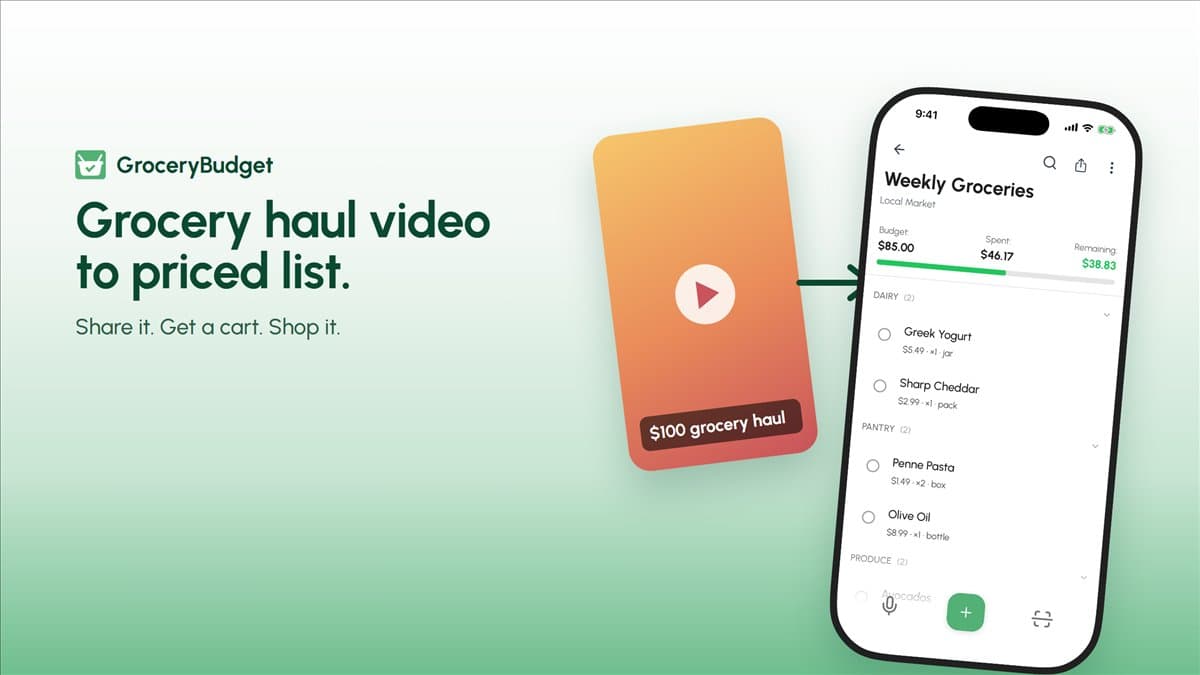
Share a post to GroceryBudget and it becomes a cart. The app reads the caption first, then the post's video or photos, and pulls out the grocery items it finds.
When the post shows prices in your currency, they come along too, so the cart starts with a running total. If the post names a budget, like a "$100 haul", the cart picks that up as its budget.
It works with:
- TikTok videos and photo posts
- Instagram posts and reels
- Facebook posts
- Screenshots from any app, like a recipe or a list someone texted you
- A pasted list, if you already copied the items somewhere
How to import a grocery haul from TikTok
- Open the video in TikTok and tap Share.
- Tap More to open the iPhone share sheet. The first time, scroll to the end of the row of apps to find GroceryBudget.
- Tap GroceryBudget.
- Wait a few seconds while it reads the caption and watches the video. Longer videos take a little longer.
- Your new cart opens with the items in it. Tapped by mistake? Hit Undo on the banner.
Instagram and Facebook work the same way: tap Share on the post, open the iPhone share sheet (More, or Share to), and pick GroceryBudget.
Put this advice to work on your next grocery trip
Plan your list, set a budget, and track the total while you shop.
Explore GroceryBudget features →Then shop it on budget
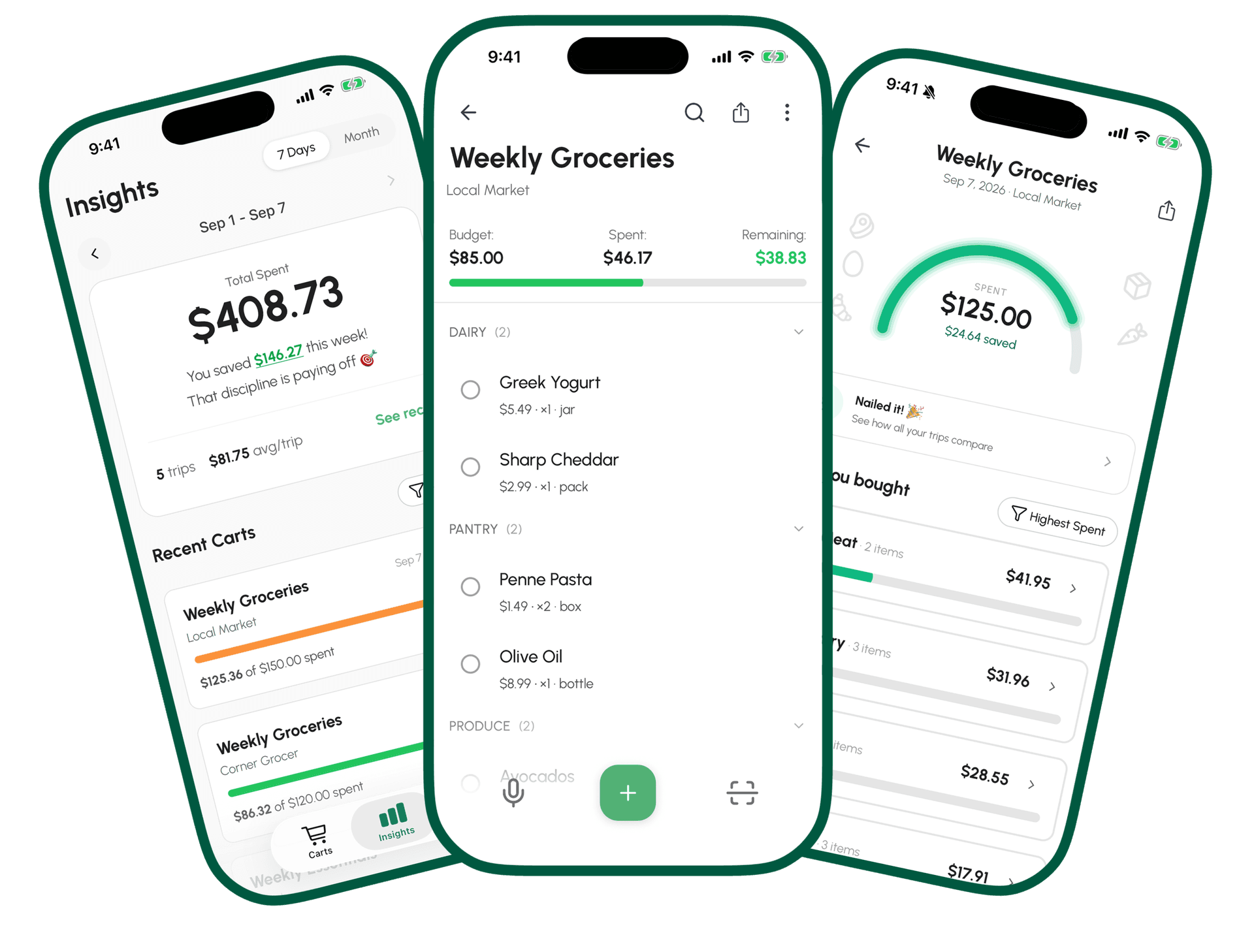
The cart works like any other GroceryBudget cart:
- Set a budget and watch the bar fill as you check items off.
- Swap or delete anything you don't want. Most hauls have a few "treat" items you can skip.
- Fill in missing prices as you shop. GroceryBudget remembers them for next time.
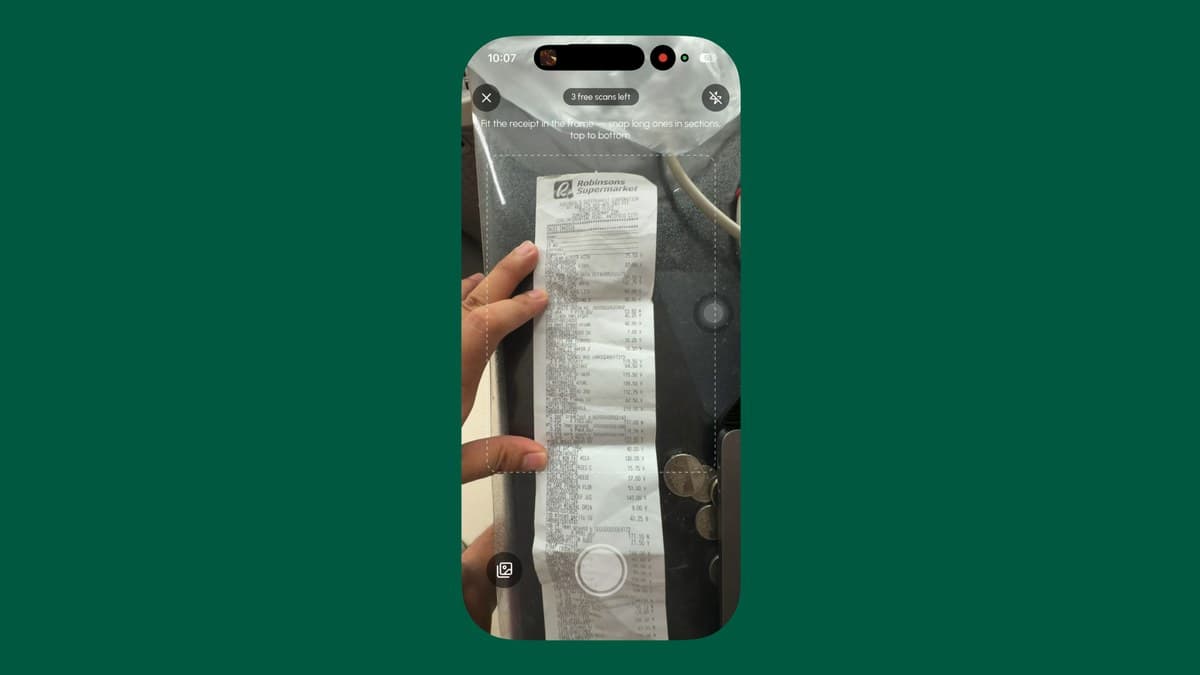
- Scan a shelf label to grab a price without typing.
What it doesn't do (yet)
- It only knows what the post shows. If a video never says a price, that item comes in without one.
- Prices in another currency are dropped, not converted. A dollar haul imported into a peso account brings the items but not the prices.
- Recipe websites, Threads and YouTube aren't supported yet. Take a screenshot of the ingredient list and share that instead.
- iPhone only for now. Android is next.
Free vs Premium
Every account gets 3 imports to try it. GroceryBudget Premium makes imports unlimited, along with unlimited label and receipt scanning, recurring lists and full insights history.
Try it on your next haul
Update GroceryBudget on your iPhone, find a haul you want to shop, and tap Share.
Frequently Asked Questions
Can I turn a TikTok grocery haul into a shopping list?+
Yes. In TikTok, tap Share, then More, then GroceryBudget. The app reads the caption and the video and creates a cart with the items it finds, plus prices when the post shows them in your currency.
Does it work with Instagram and Facebook?+
Yes. Share a public Instagram or Facebook post the same way. You can also share a screenshot from any app, or paste a list you copied.
Is importing free?+
Free accounts get 3 imports. GroceryBudget Premium removes the limit.
Does Import work on Android?+
Not yet. Import launched on iPhone first. Android is next.